
The Recovery tab is used to define the actions that are taken by the Windows Service Control Manager if the entire FireDaemon Pro service fails (e.g. firedaemon.exe crashes). Normally, you would not need to configure Service Recovery as FireDaemon Pro would restart your program based on the options you have set in the Lifecycle tab.
Note regarding Service Termination Cascades: You can set up a service termination cascade. This is when the program running under FireDaemon Pro control fails and you want the restart to be handled by the Windows Service Control Manager, rather than FireDaemon Pro. For the Recovery option to work correctly under these circumstances, you must set the Upon Program Exit option in the Lifecycle tab to Terminate FireDaemon service.
The Recovery tab provides the same functionality as that found on the Recovery options of each built-in service in the Windows Services application (services.msc).
Note regarding Recovery Options Sovereignty: FireDaemon Pro assumes data sovereignty of the entire service configuration including the Recovery options. If you change the Recovery options outside of FireDaemon Pro (e.g. via services.msc or sc.exe), then those changes will not be reflected in your FireDaemon Pro service configuration. This is intentional and by design. If you wish to make changes to FireDaemon Pro service Recovery options do so, but ensure you use the FireDaemon Pro GUI or CLI to make those changes.
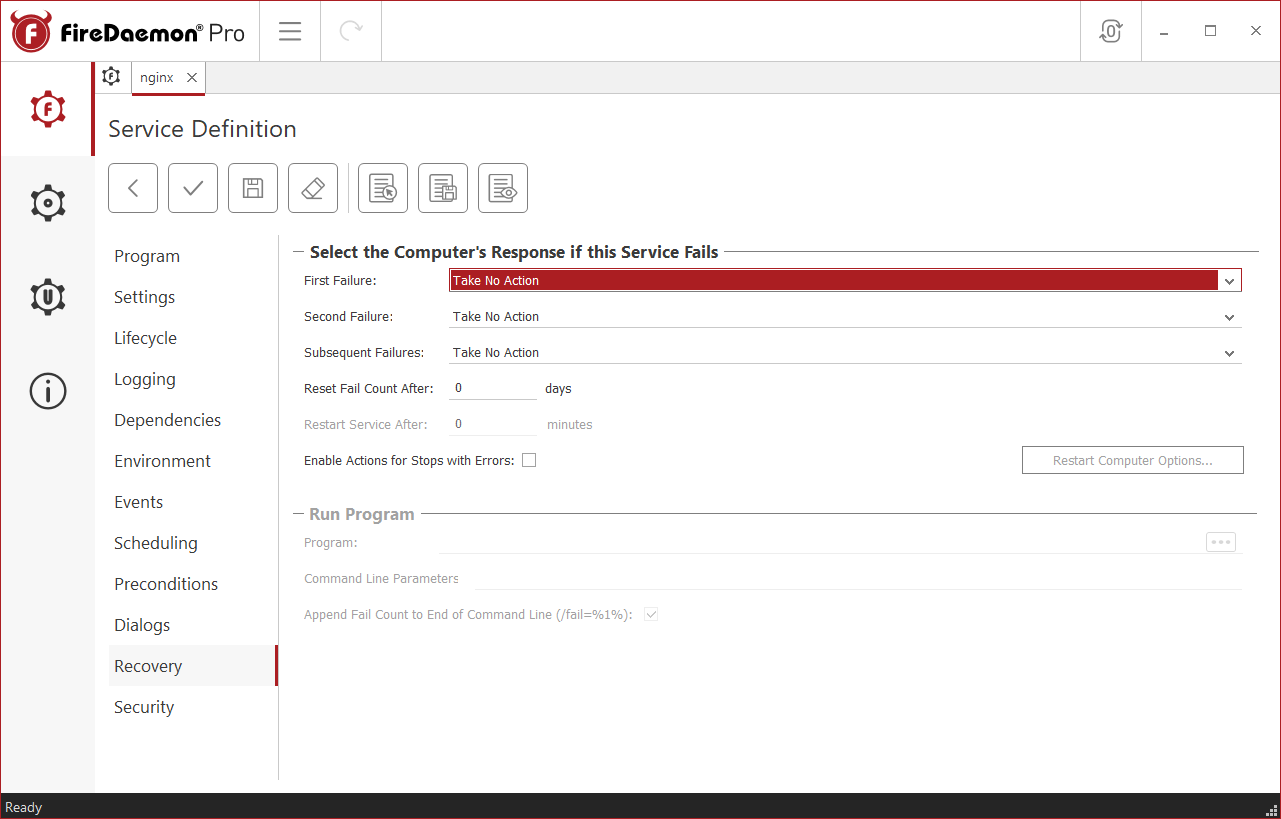
The following table describes the fields provided on the Recovery page.
| Field | Description |
| First/Second/Subsequent Failure | Defines the action taken in the event of a service failure. Following are the valid options:
While these options are similar to FireDaemon Pro functions, these responses are actually handled by the Windows Service Control Manager and not FireDaemon Pro. |
| Reset Fail Count After | This option determines the number of days after which the failure counter is reset to zero. When the failure counter is reset, the sequence of First/Second/Subsequent Failure actions starts at the beginning again. |
| Restart Service After | This option determines the time (in minutes) after which a failed service restarts. |
| Enable Actions for Stops with Errors | If selected, the First and subsequent failure actions will be triggered if the service stops with an error. |
| Restart Computer Options | This displays the Restart Computer Options dialog box. In the dialog box, set the time (In minutes) to wait before restarting the system. Optionally, a message can also be broadcast to other computers on the network before the restart by checking the checkbox and entering the text of the message. 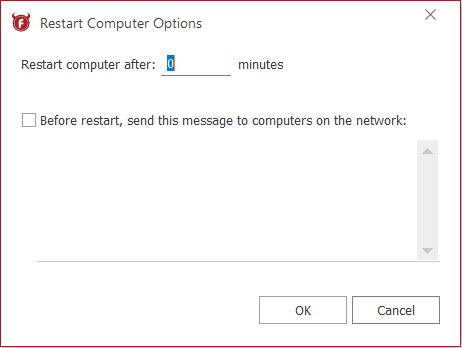 Note: The feature is only enabled when the Restart the Computer option is selected as a failure action. |
| Run Program The Run Program options are only enabled if one of the failure actions is set to Run a Program. The following options are available: | |
| Program | The full path and name of the program executable to run. |
| Command Line Parameters | The command-line parameters to be passed to the program executable. If any parameter contains whitespace characters, it must be quoted, e.g. "string with spaces" |
| Append Fail Count to End of Command Line | Appends the /fail=%1% parameter to the command line parameters. %1% is a replaceable parameter. In the event of a failure, this parameter is replaced by the value 1 through 3 to represent the value of the failure counter. |